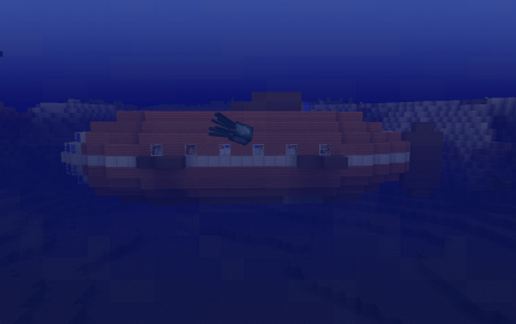
Salvage and Attack Submarine Nautilus
Published on January 1, 2023
By msummers
👁️🗨️ 185
44
★
★
★
★
★
Rate it
Screenshots
Description
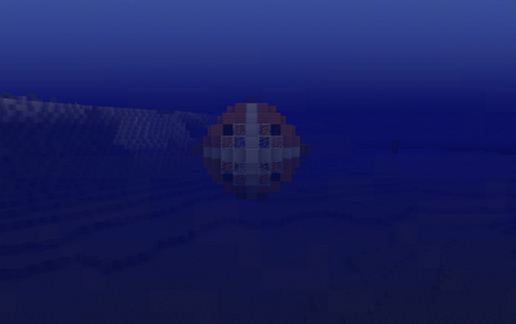
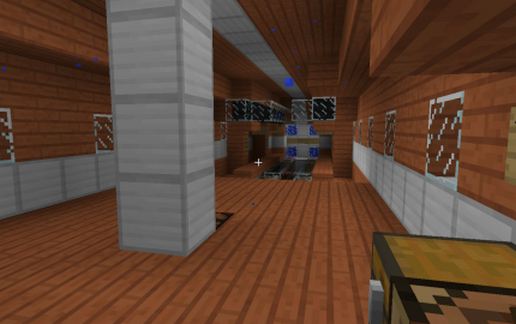
This is a submarine that can be sailed using the Movecraft plugin for Minecraft
In the video, the submarine can be seen at about 5:19.
Background
The Nautilus was originally designed as a salvage vessel, to recover valuable items from the ocean floor. However, soon after Robert Bellamy introduced the first submersible airships, the need for an armed submarine became apparent. The Nautilus was retrofitted with 4 torpedo tubes to fulfill that need until a dedicated attack submarine design could be devised. The Nautilus and her sister ships fulfilled their role adequately, if not exceptionally. She suffered from constant leaks, owing to her wood-and-pitch construction. Also, she was relatively lightly armed for a ship her size.
Armament
4 torpedo tubes for medium sized torpedoes
Notes
Use these craft files for Movecraft, put them in the plugins/movecraft/types directory:
https://dl.dropboxusercontent.com/u/11164014/MovecraftTypes.zip
Download Movecraft from this link:
http://dev.bukkit.org/bukkit-plugins/movecraft/
Finally, if you need help setting up Movecraft, use this tutorial:
www.youtube.com/watch?v=hWHqnTkY330
In the video, the submarine can be seen at about 5:19.
Background
The Nautilus was originally designed as a salvage vessel, to recover valuable items from the ocean floor. However, soon after Robert Bellamy introduced the first submersible airships, the need for an armed submarine became apparent. The Nautilus was retrofitted with 4 torpedo tubes to fulfill that need until a dedicated attack submarine design could be devised. The Nautilus and her sister ships fulfilled their role adequately, if not exceptionally. She suffered from constant leaks, owing to her wood-and-pitch construction. Also, she was relatively lightly armed for a ship her size.
Armament
4 torpedo tubes for medium sized torpedoes
Notes
Use these craft files for Movecraft, put them in the plugins/movecraft/types directory:
https://dl.dropboxusercontent.com/u/11164014/MovecraftTypes.zip
Download Movecraft from this link:
http://dev.bukkit.org/bukkit-plugins/movecraft/
Finally, if you need help setting up Movecraft, use this tutorial:
www.youtube.com/watch?v=hWHqnTkY330
Download: Salvage and Attack Submarine Nautilus schematic for Minecraft
| Format | Size | Use with | |
|---|---|---|---|
.litematic salvage-and-attack-submarine-nautilus.litematic |
21.92 KB | Litematica (Java) — more Litematica schematics |
|
.schem salvage-and-attack-submarine-nautilus.schem |
1.03 KB | WorldEdit / FAWE |
|
.schematic salvage-and-attack-submarine-nautilus.schematic |
1.43 KB | Legacy / online installer |
|
| Install this build directly on your Minecraft map |
|
||
Auto-converted from the original format; container contents (chests, signs) may be missing.
📘 How to use with Litematica (click to expand)
- Put the downloaded
.litematicfile into the.minecraft/schematics/folder. - In game, press M to open the Litematica menu and choose Load Schematics.
- Select the file in the list and click Load Schematic.
- Position the placement where you want it and build — or paste it instantly in creative with Easy Place mode.
Requires the Litematica mod (Java Edition).
More builds: Litematica schematics.
Comments
Similar