How to use
Hey, in this article I will tell you how to install the building on your Minecraft map using this service. Everything is very simple.

Preparing a compressed file
You need to compress the map directory into .zip format (the .mcworld extension is also allowed), for this go to the directory with saved maps:
Windows

c:\Users\|UserName|\AppData\Roaming\.minecraft\saves

Or Press Win+R > type %appdata%\.minecraft -> Ok
Linux

 ~ is your home directory, usually /home/,
so ~/.minecraft would be/home//.minecraft/saves
OS X

 Open Finder then paste: ~/Library/Application Support/minecraft/saves in the Search box.
Android:

/storage/emulated/0/Android/data/com.mojang.minecraftpe/files/games/com.mojang/minecraftWorlds/
A possible path like this (for older versions):
/storage/emulated/0/games/com.mojang/minecraftWorlds/
Windows

C:\Users\Username\AppData\Local\Packages\Microsoft.MinecraftUWP_8wekyb3d8bbwe\LocalState\games\com.mojang\minecraftWorlds
Select the folder with the map (usually it's called My World or something like this ) , press the right mouse button and select Send to > Compressed (zipped) Folder or compress the folder with, for example, 7-Zip or Mi File Manager for Android .
Everything, now you can upload the data file to the site.
File upload and building selection
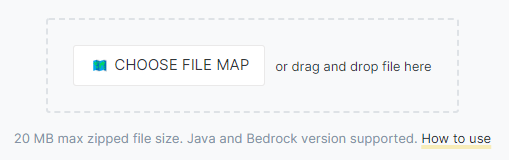
Drag and drop the file into the field as shown in the picture or in the modal window, click - Choose File Map.
Select the building you need, a modal window will open with information about the building and a choice of indents from the player.
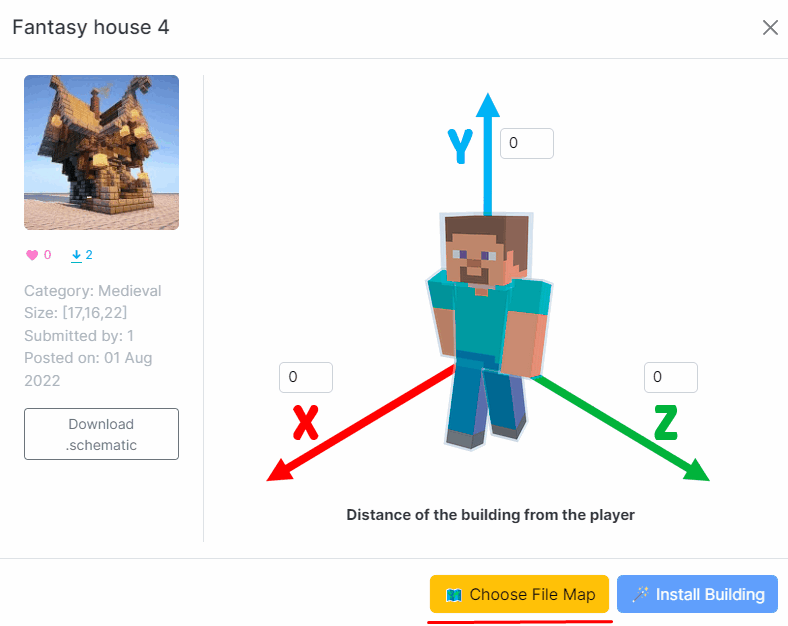
choice of indents from the player
You can specify padding (size in blocks) from 1 to 100. If you want to place a building next to the player, leave it everywhere - 0.
Then click - Install Building. Usually the installation will take no more than 1-2 minutes.
Download received file. It can be with .zip extension (for Java version, you need to unzip to the directory with your saved maps in a new directory) or .mcworld (open with Minecraft in Android).
Please note: some buildings may not be installed correctly in your map (skipping or removing some blocks in the building area)
Enjoy! ✌️
Prefer mods? Download builds as files
The online installer is the easiest way, but every build on MCBuild can also be downloaded as a file in three formats — pick the one your tools use:
- .litematic — for the Litematica mod (Java). Put the file into
.minecraft/schematics/, press M in game, choose Load Schematics and build block by block over the ghost outline — great for survival. - .schem — for WorldEdit / FAWE (Java, 1.13+). Drop it into the plugin's
schematics/folder, then run//schem load <name>and//paste. - .schematic — the classic format for older tools (MCEdit, WorldEdit up to 1.12).
The format buttons are in the Download table on every build's page in the schematics catalog.
FAQ
What's the maximum map file size?
20 MB for the zipped world. If your world is bigger, copy it and delete unused chunks/regions from the copy first.
Java or Bedrock?
Both. Java worlds upload as .zip and come back as .zip; Bedrock worlds work as .mcworld. The downloadable schematic files (.litematic/.schem) are for Java mods.
The building installed with missing or misplaced blocks
It happens with a few very old or modded builds — blocks that don't exist in your game version are skipped. Try a different version of the build, or download it as .litematic and place it with Litematica to see exactly which blocks are affected.
Is it free?
Yes — the installer, all downloads and all tools are free.