How to Play Split-Screen in Minecraft Bedrock on Xbox, PlayStation and Switch
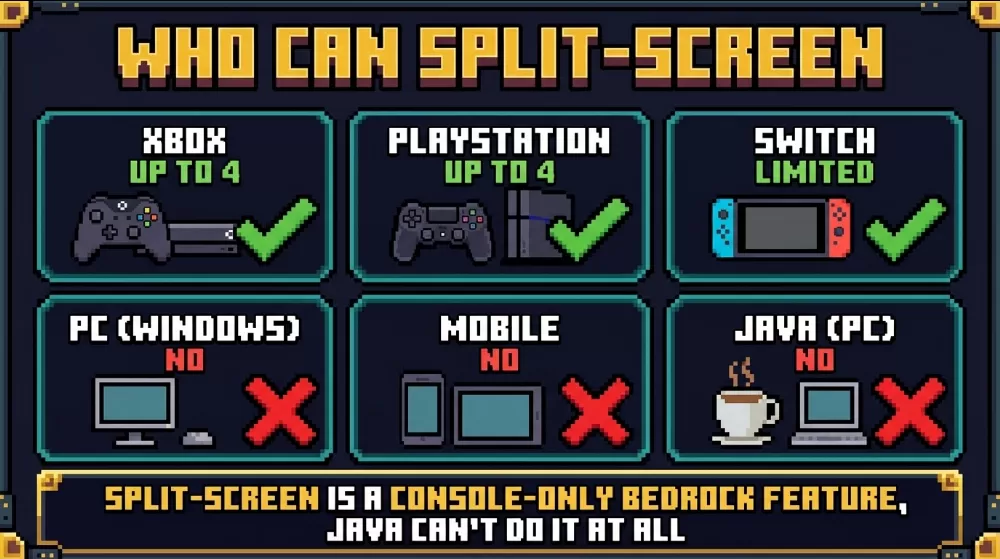
Split-screen lets up to four people play Minecraft on one console and one TV, each with their own part of the screen and their own controller. It is a Bedrock feature that only works on consoles: Xbox, PlayStation and Nintendo Switch. Java Edition does not have split-screen at all, and neither do the Windows and mobile versions of Bedrock.

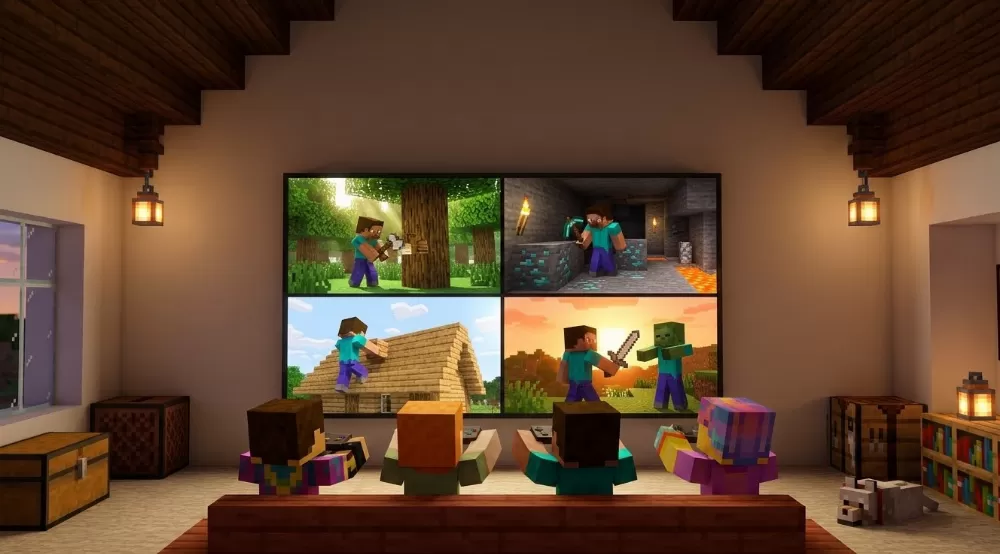
Setting it up takes less than a minute. Load a world, have the second player press a button on their controller, sign in, and the screen splits automatically. Here is what you need and how to fix the most common problems.
What you need
- A supported console: Xbox One or Xbox Series X|S, PS4 or PS5, or Nintendo Switch.
- A controller for each player. On Switch, every extra player needs a full controller, such as a pair of Joy-Cons or a Pro Controller. A single Joy-Con held sideways does not work for split-screen.
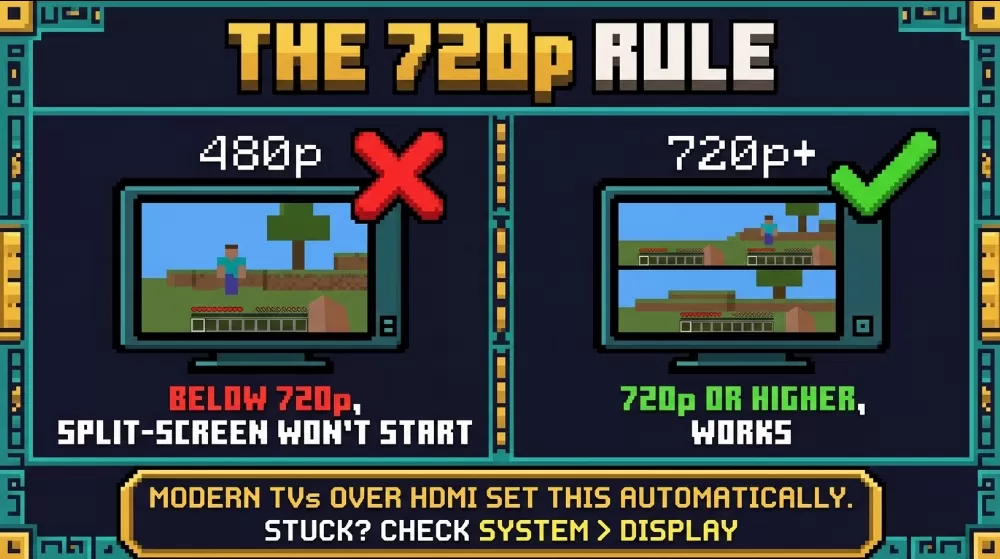
- A TV or monitor running at 720p or higher.
- A profile for each player. Signing in with a Microsoft account keeps that player's progress and achievements. A guest profile is fine for a quick session.
How to start split-screen
Start Minecraft with the first player signed in and load a new or existing world. The other controllers will not do anything in the main menu, so you need to be inside the world first. Then turn on the second controller and press Menu on Xbox, Options on PlayStation, or the button shown on screen on Switch. The second player picks their profile or joins as a guest, and the screen splits in half. When a third or fourth player joins the same way, the screen switches to four sections.
Playing together on one console works offline and does not need any paid subscription.
Playing online with split-screen
Two or more players on the same couch can also go online together, for example to join a friend's world or a Realm. For that, you need the console's online subscription: PlayStation Plus, Xbox Game Pass Core or Ultimate, or Nintendo Switch Online. Keep in mind that split-screen only works in friends' worlds and Realms. Featured servers and other community servers let only one player per console join.
Platform differences
Xbox and PlayStation both support up to four players and run split-screen the most smoothly. Switch supports it too, even in handheld mode, but the small screen and weaker hardware make it noticeably harder to play with more than two people. For the best experience on Switch, play docked on a TV and keep the group small. On Windows, phones and tablets there is no split-screen, so the closest option is playing over LAN with a separate device for each person.
Performance with more players
Each player added to the screen means the console has to draw the world several times at once, so the game automatically lowers the render distance. With four players in a big world full of mobs, farms and redstone, the frame rate can drop. If that happens, lower the render distance in the settings or play with fewer people at the same time.
Common problems
Nothing happens when the second controller is turned on. Make sure you are already inside a loaded world, the controller is properly connected to the console and you are pressing the right button.
The game says the resolution is not supported. Split-screen will not start below 720p, and sometimes it just does not start without any clear message. Open the console's display settings, set the output to 720p or higher and use an HDMI connection.
The second player cannot sign in. They need a profile on the console first. Create one in the system settings, or join as a guest.
You cannot play online together. Check that your console subscription is active and that you are joining a friend's world or a Realm, not a featured server.